How to create a limited edition product limit
In this article, you'll learn how to set up a limited edition product limit in MinCart.
Step 1: Start by navigating to the apps.
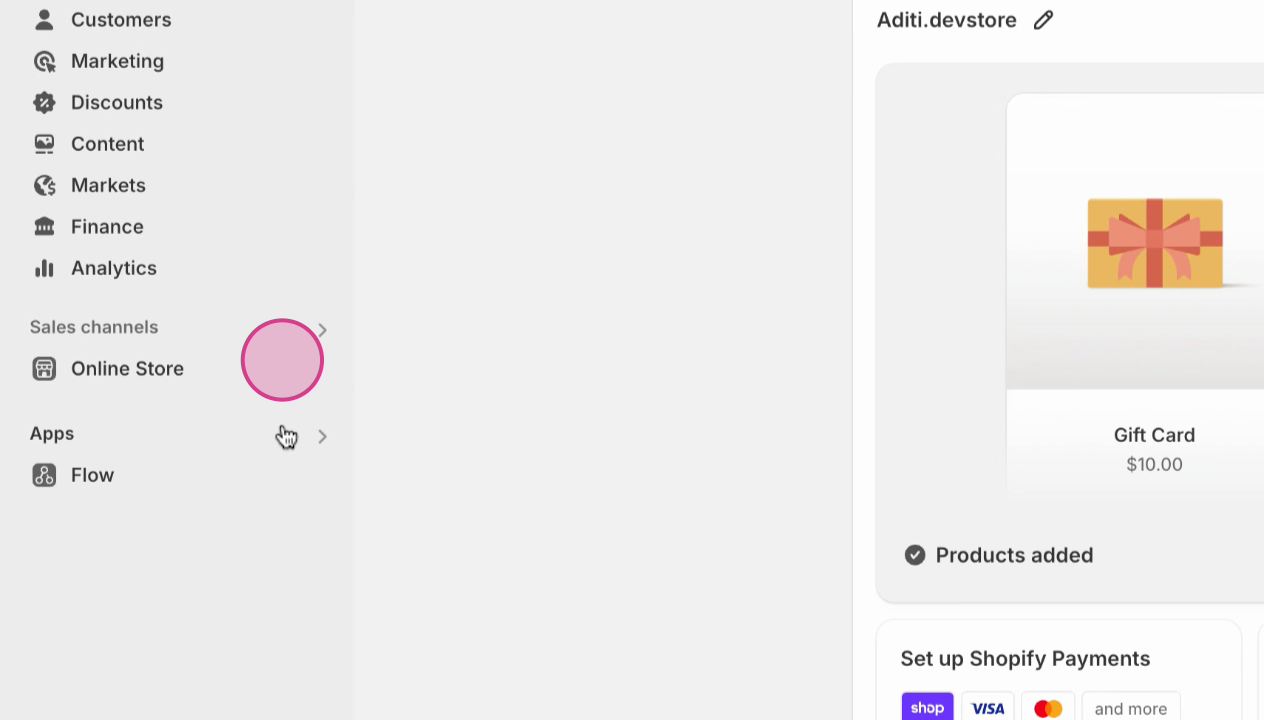
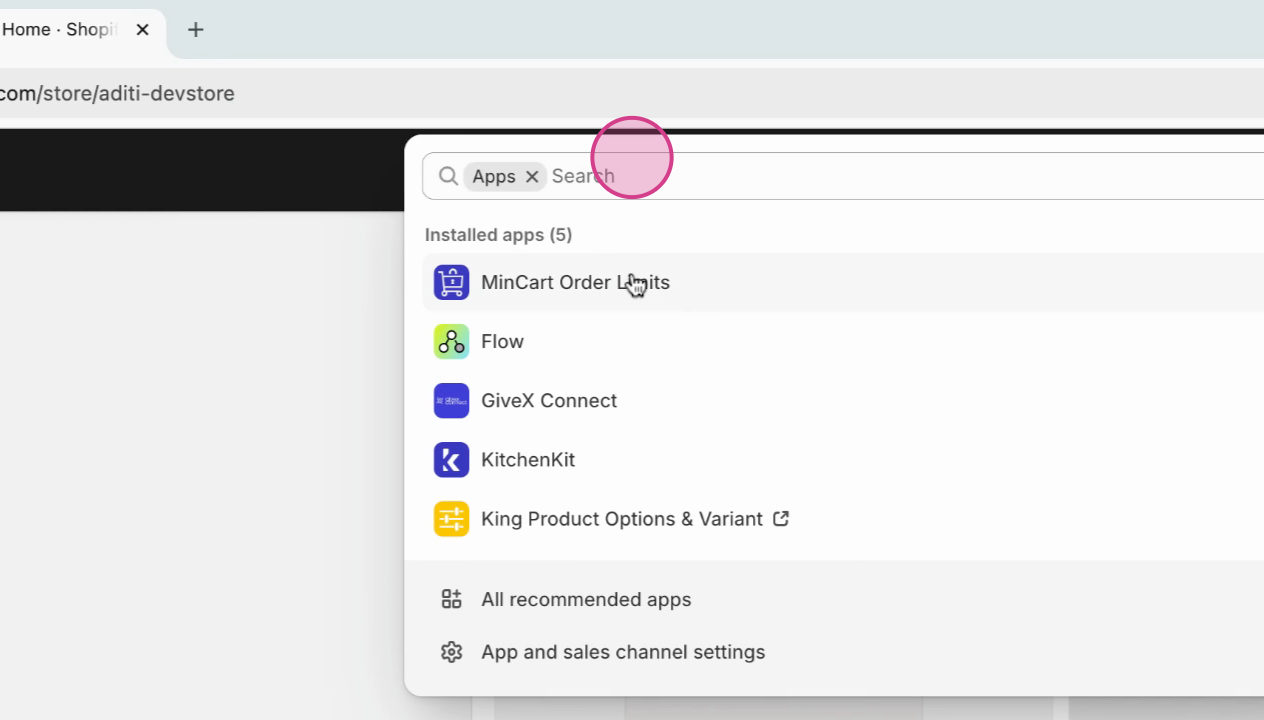
Step 2: Here, you'll see all the installed apps. Select MinCart order limits.
Step 3: Scroll down and complete the step-by-step installation guide. Once finished, proceed to create a new limit.
Step 4: Now, let's create a product limit. For a limited edition product, name the limit as test.
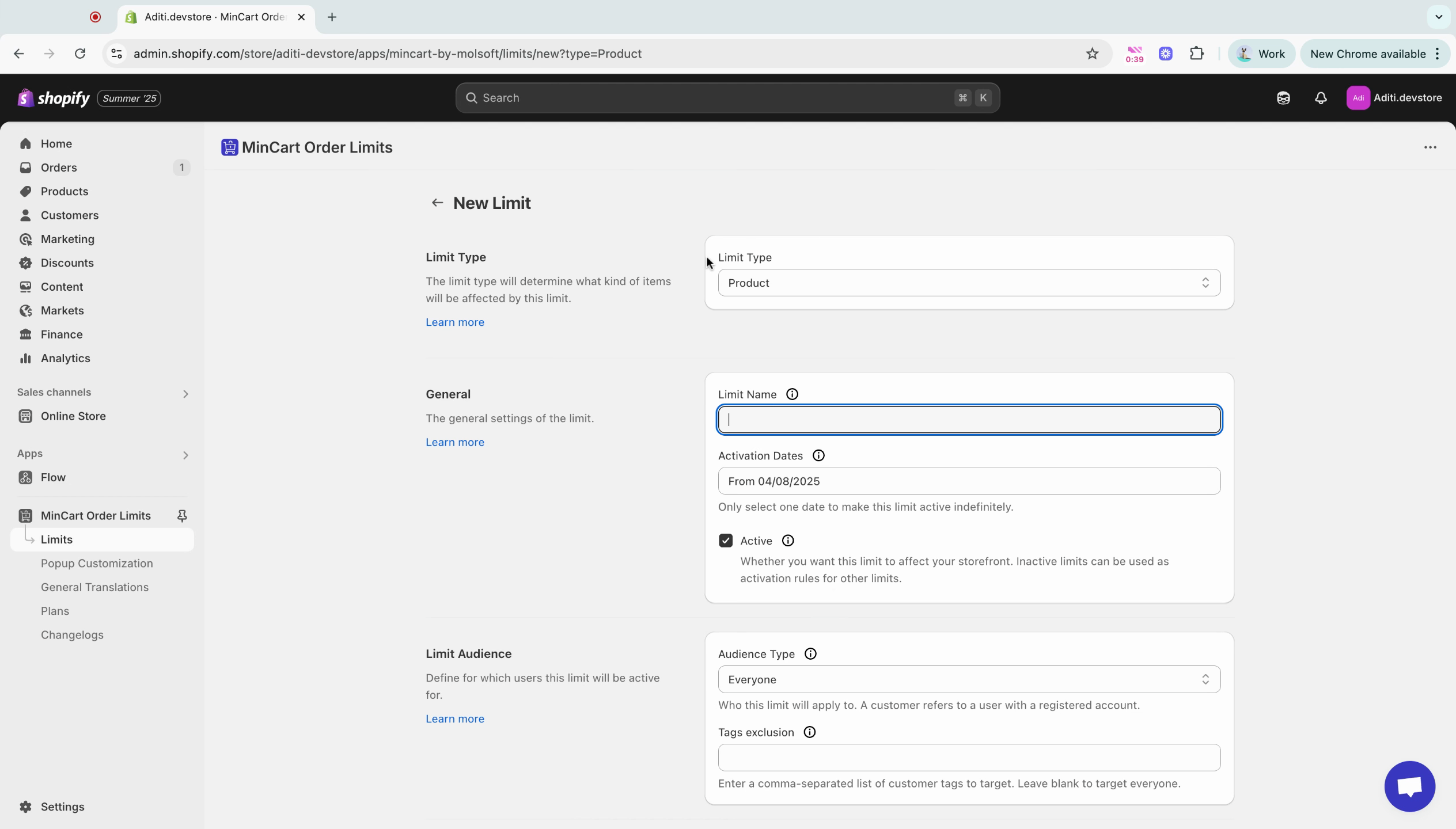
Step 5: Choose the limit type. In this case, we're selecting product.
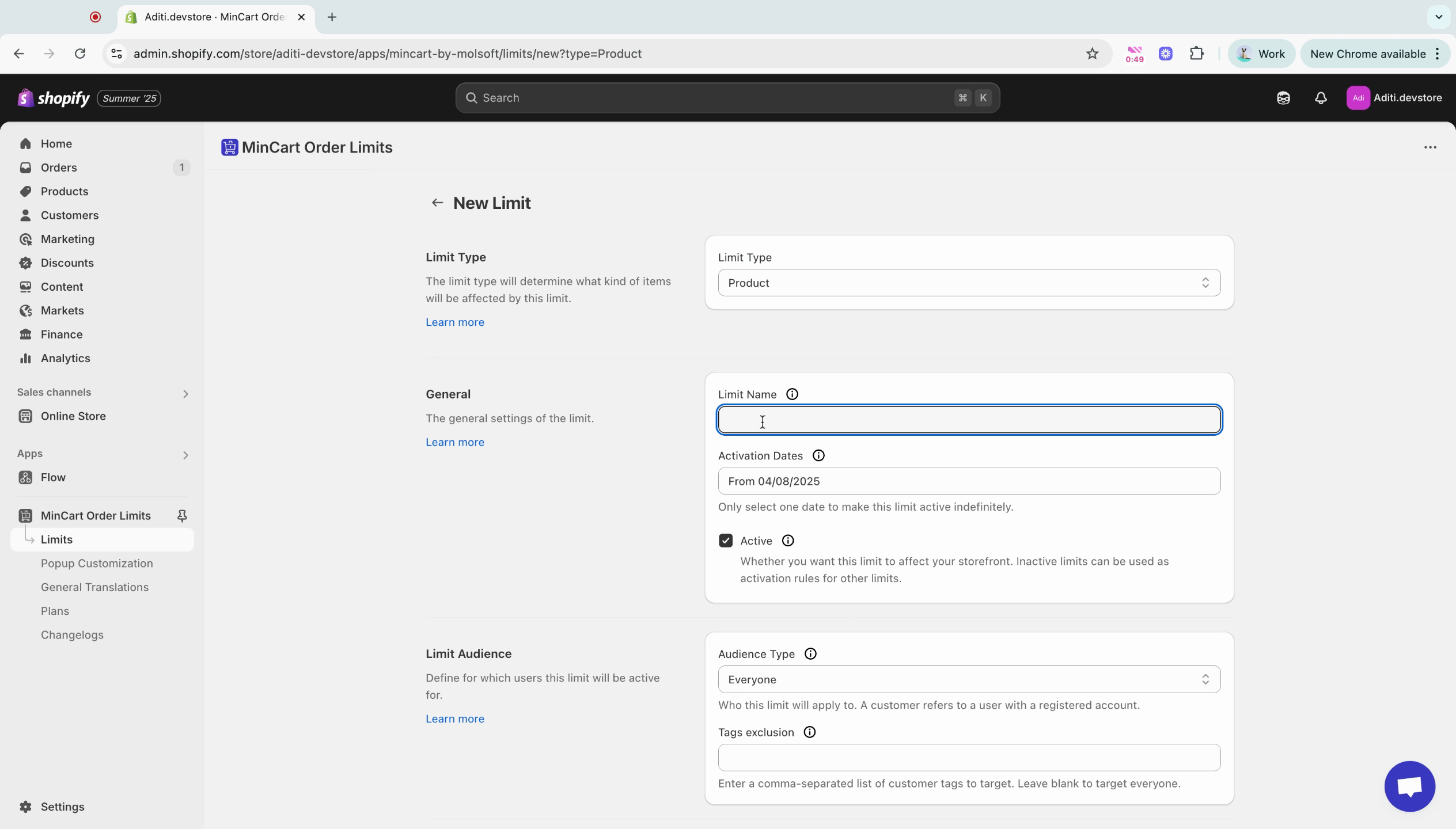
Step 6: Set the limit name as limited and the activation date as today. Remember to test it before going live.
Step 7: Next, set the activation state. Keep the product active for testing purposes.
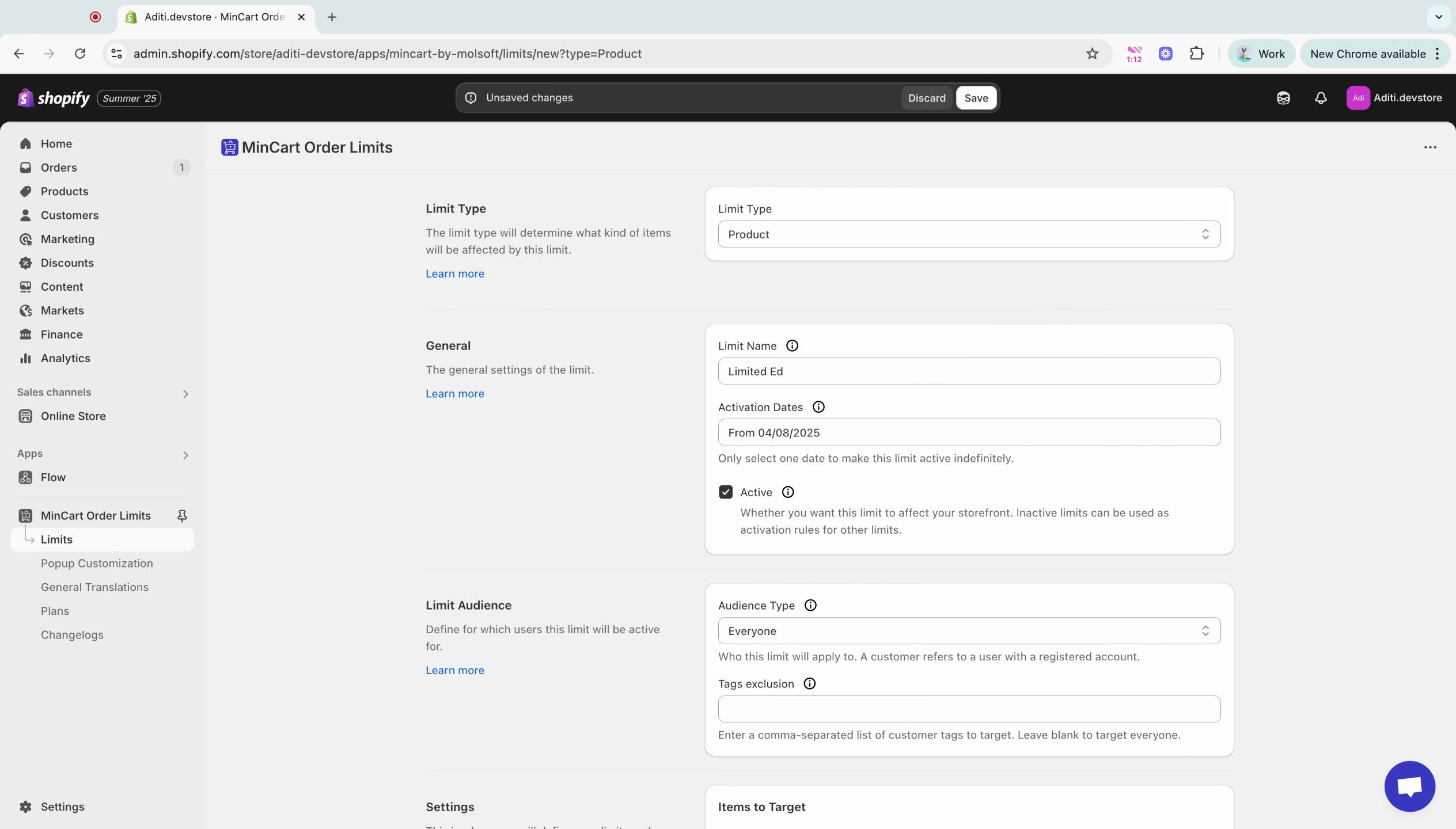
Step 8: Now, let's set the limit audience.
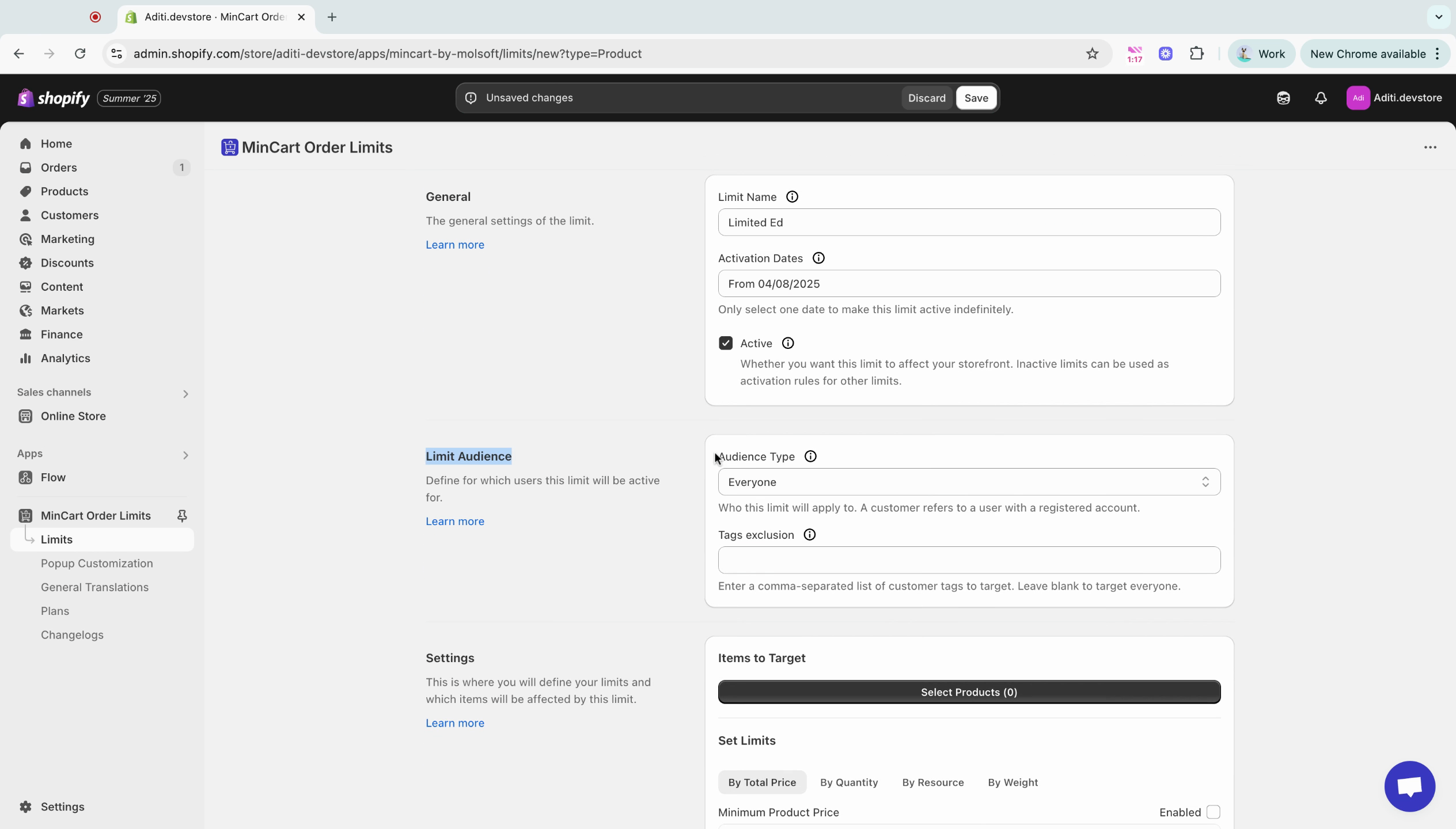
Step 9: You have the option to limit the audience to everyone, non-customers, or customers. In this case, we're choosing everyone.
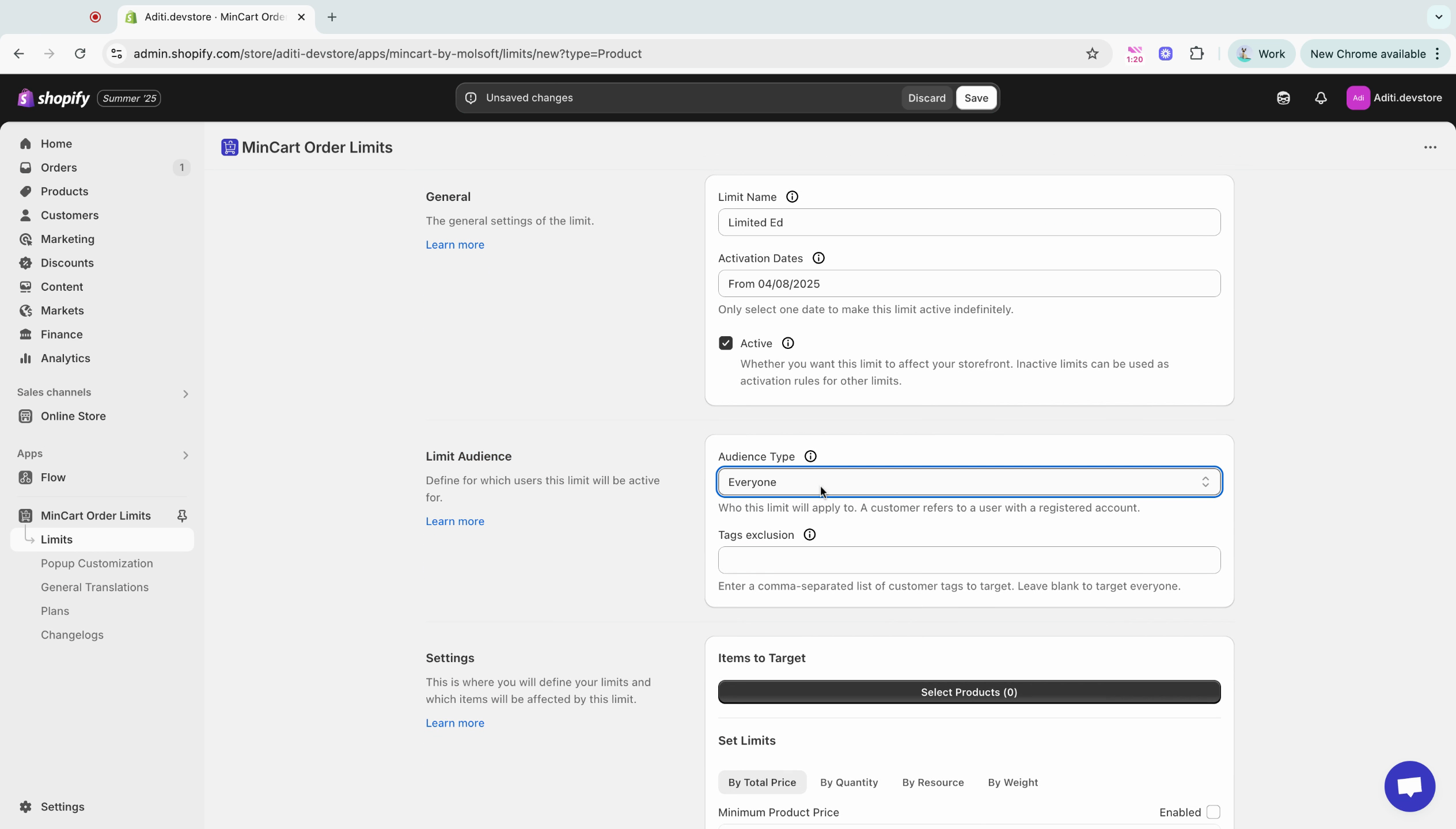
Step 10: In settings, choose items to target. Click on select product.
Step 11: You'll see two options. Choose products.
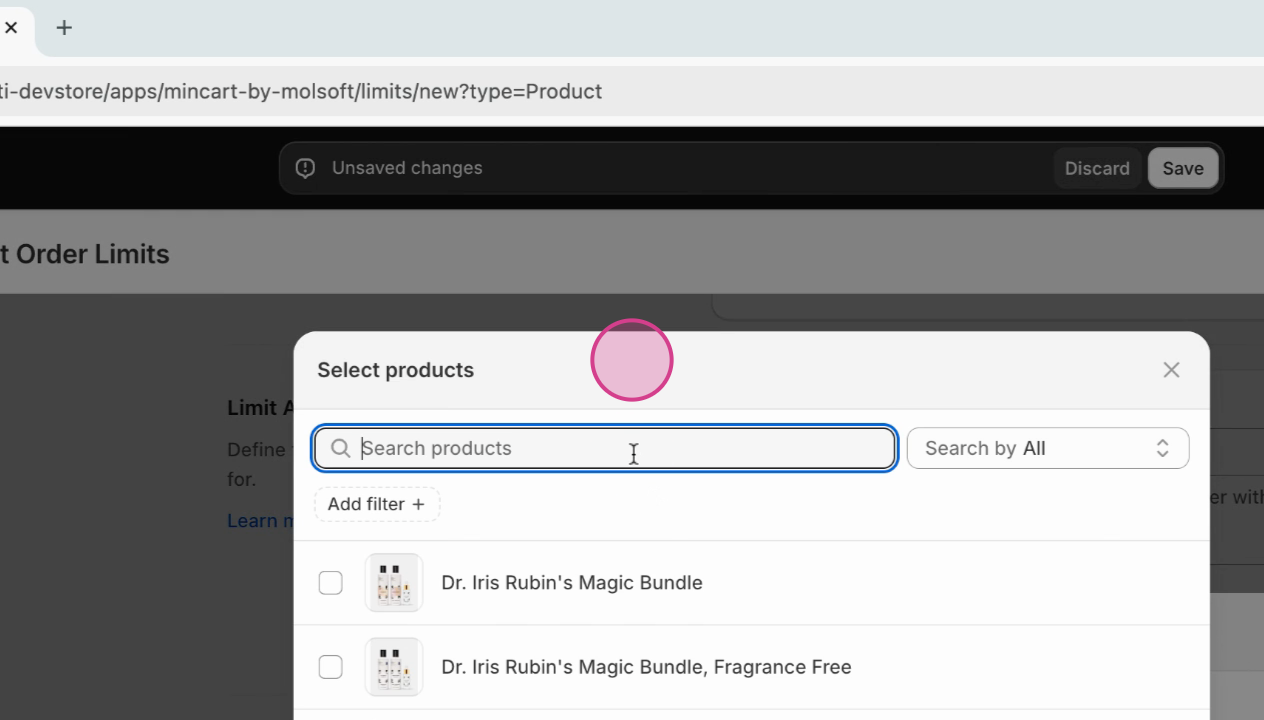
Step 12: Select the product you want to limit.
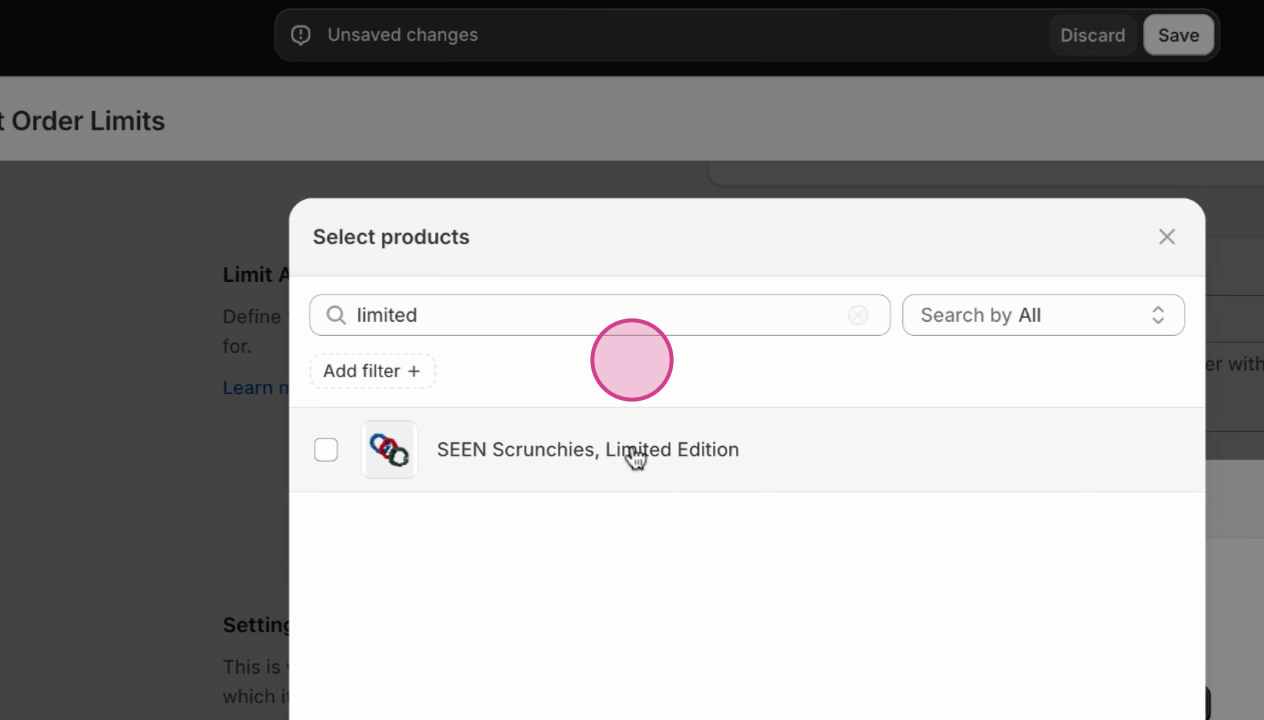
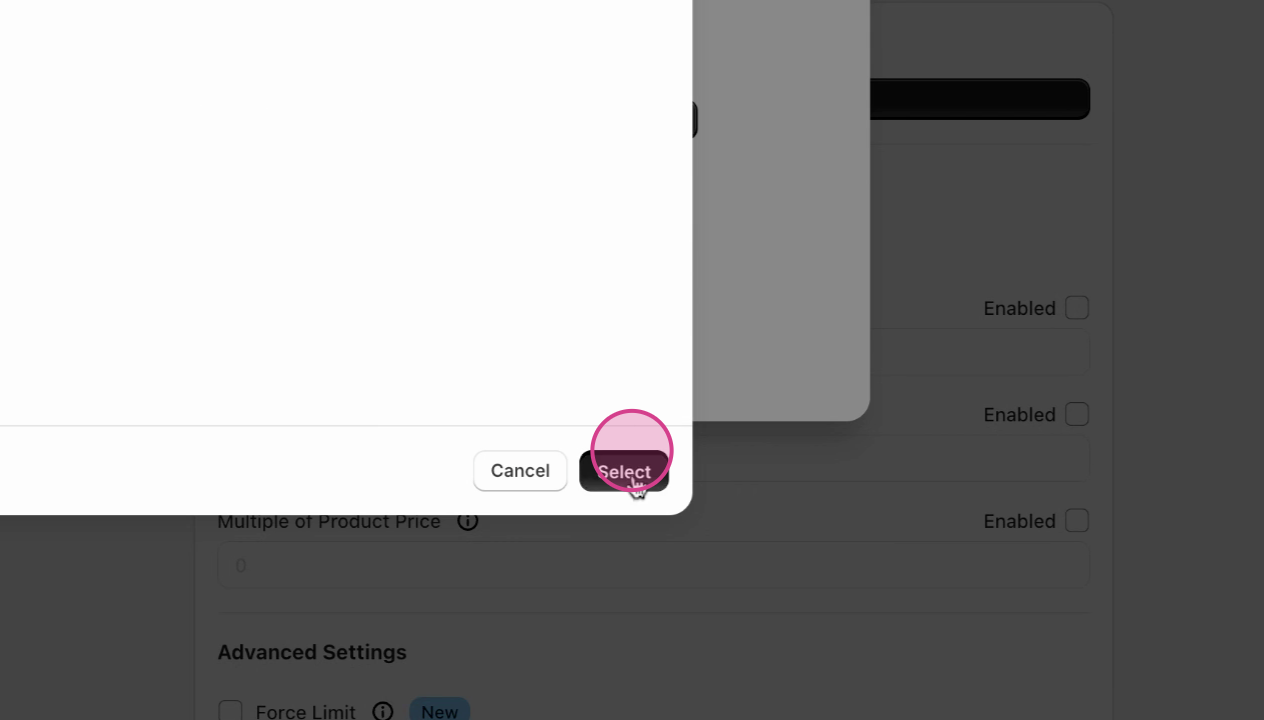
Step 13: Set the quantity limit to one. This means each customer can only purchase one of this product.
Step 14: You don't need to set up anything else. However, you have the option to write a message that will appear when customers are unable to check out due to the quantity warning.
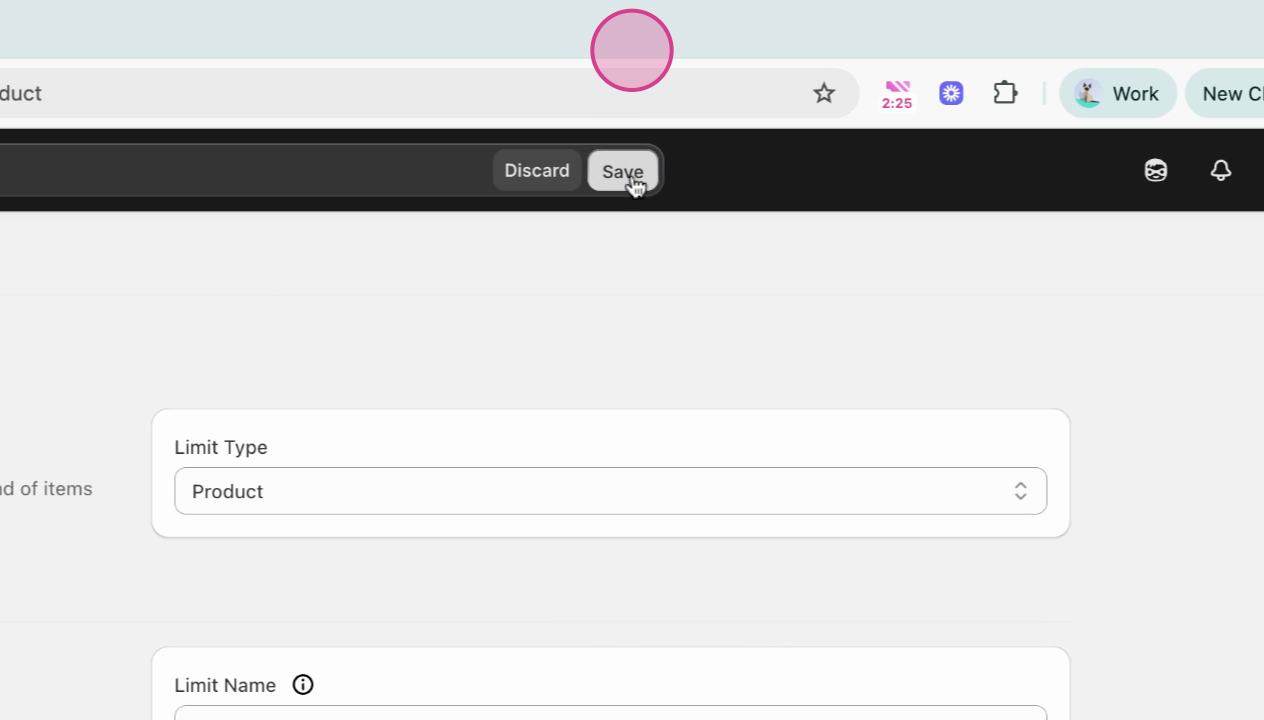
Step 15: Once you're done, click save.
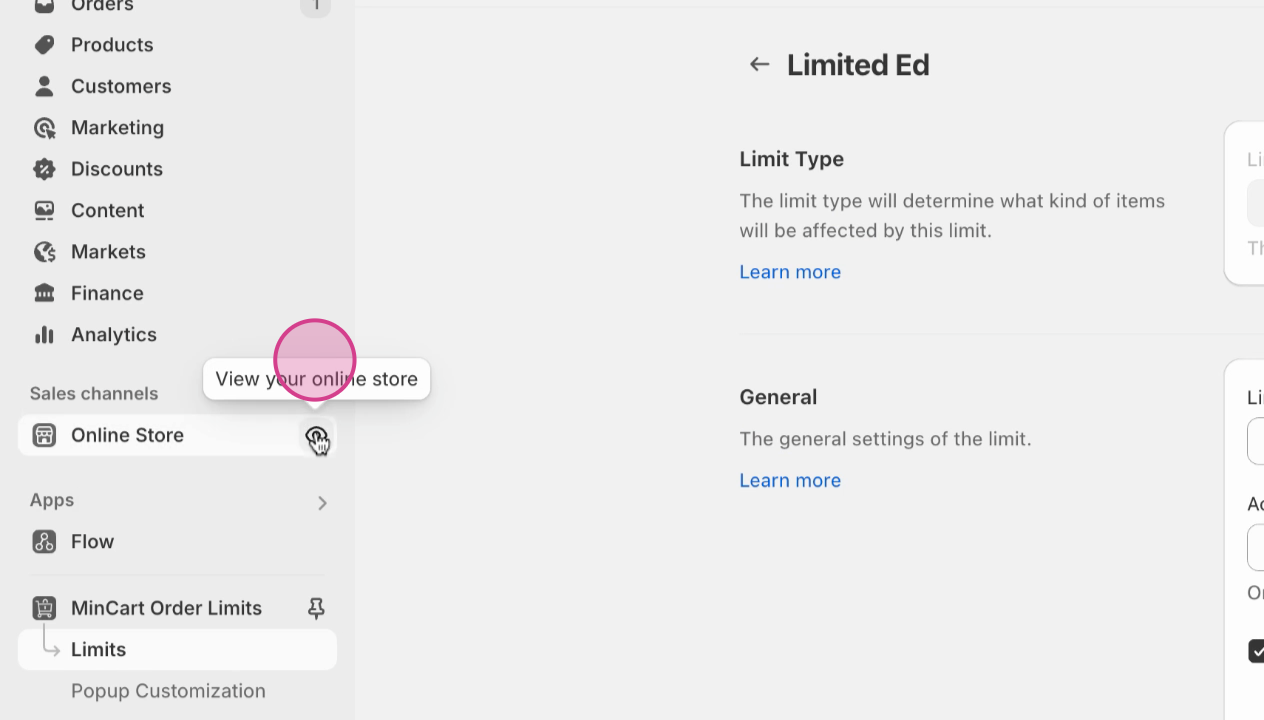
Step 16: Now, let's test it on my store.
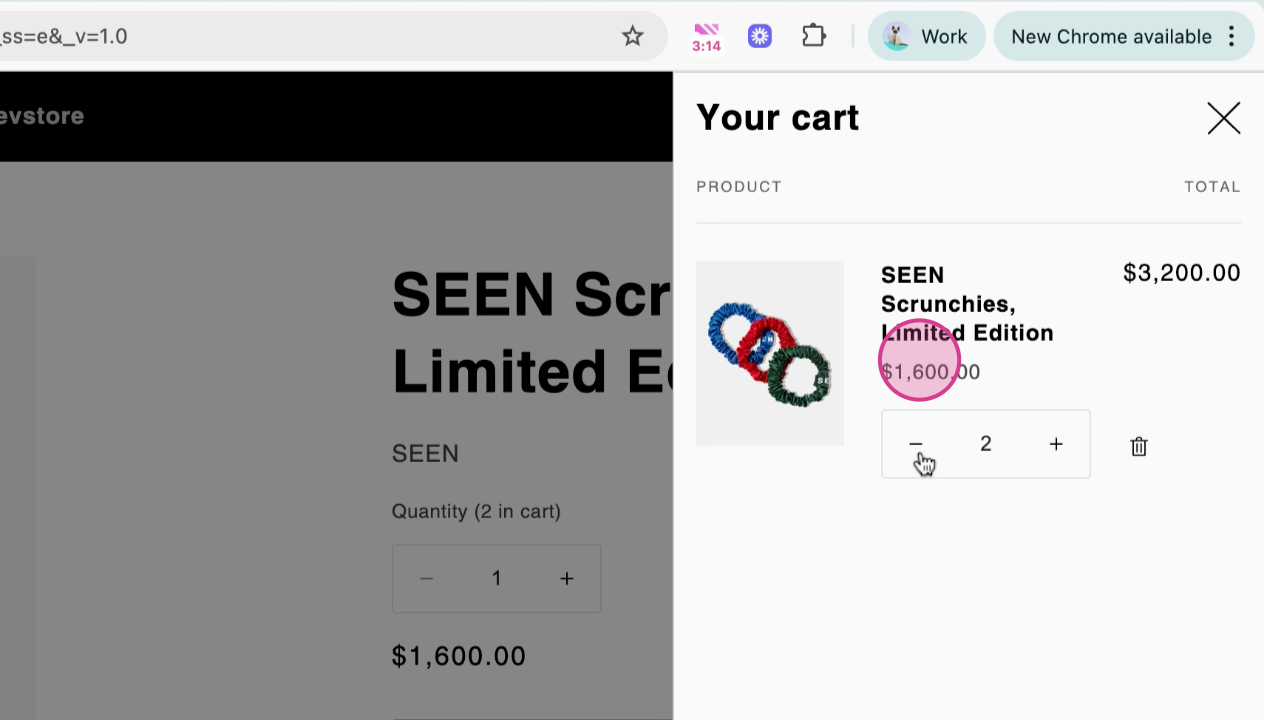
Step 17: Try purchasing two quantities of the limited edition product.
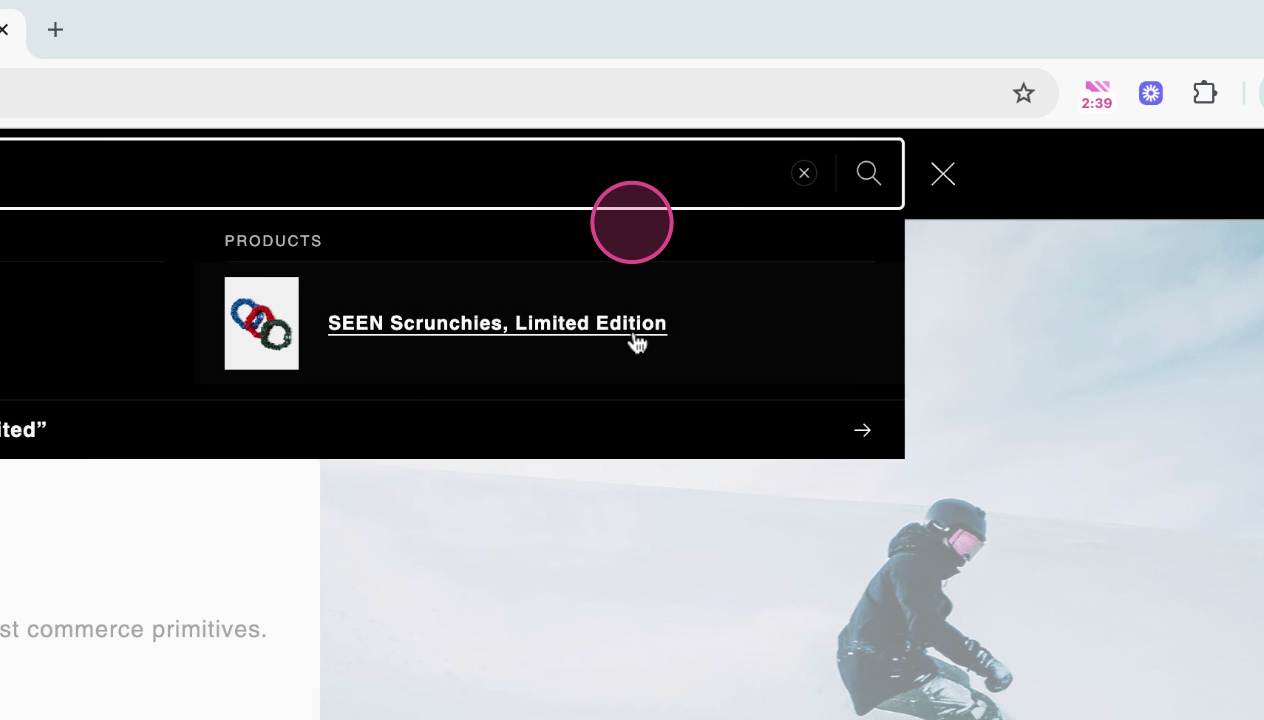
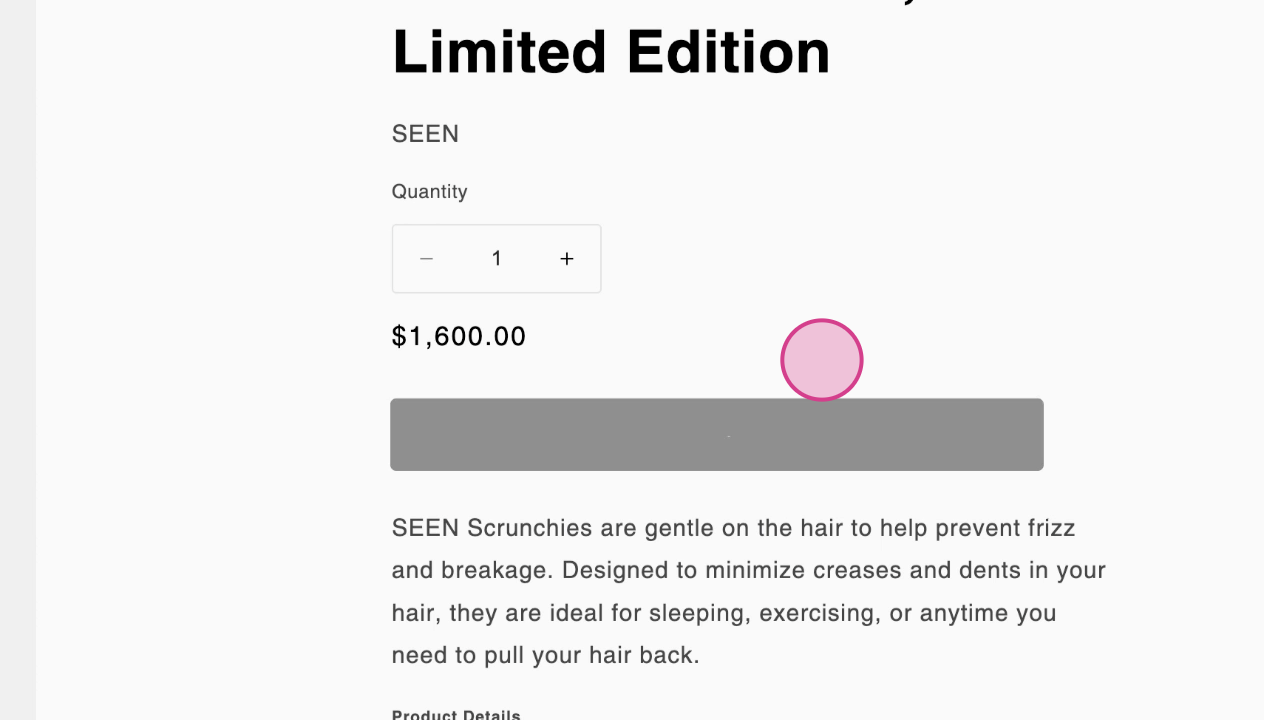
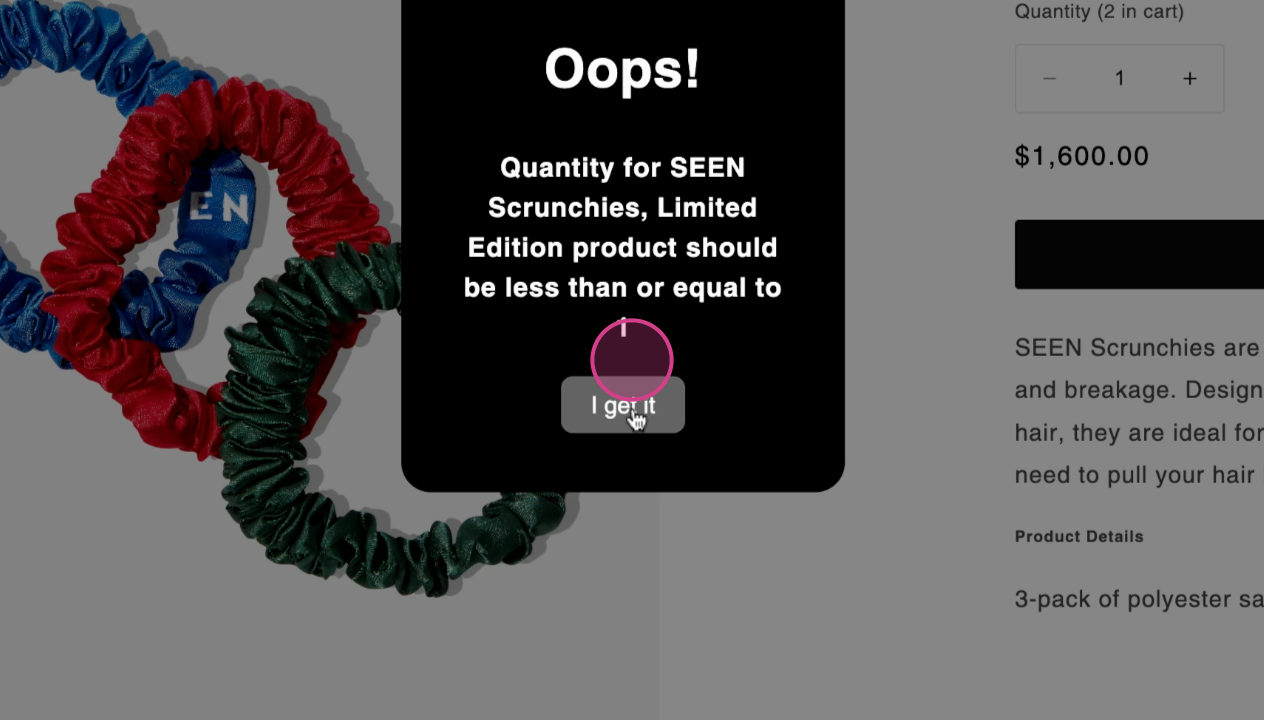
Step 18: If the limit is working correctly, you'll see a quantity warning when you try to check out with more than one product.
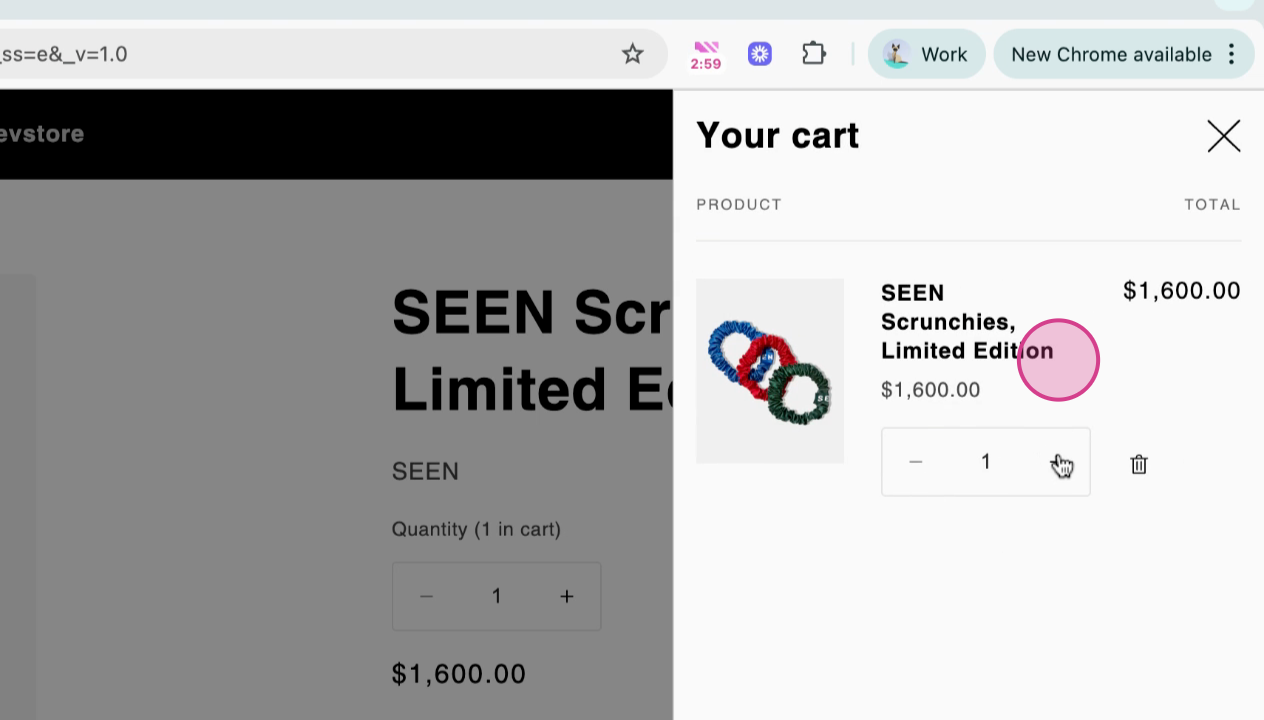
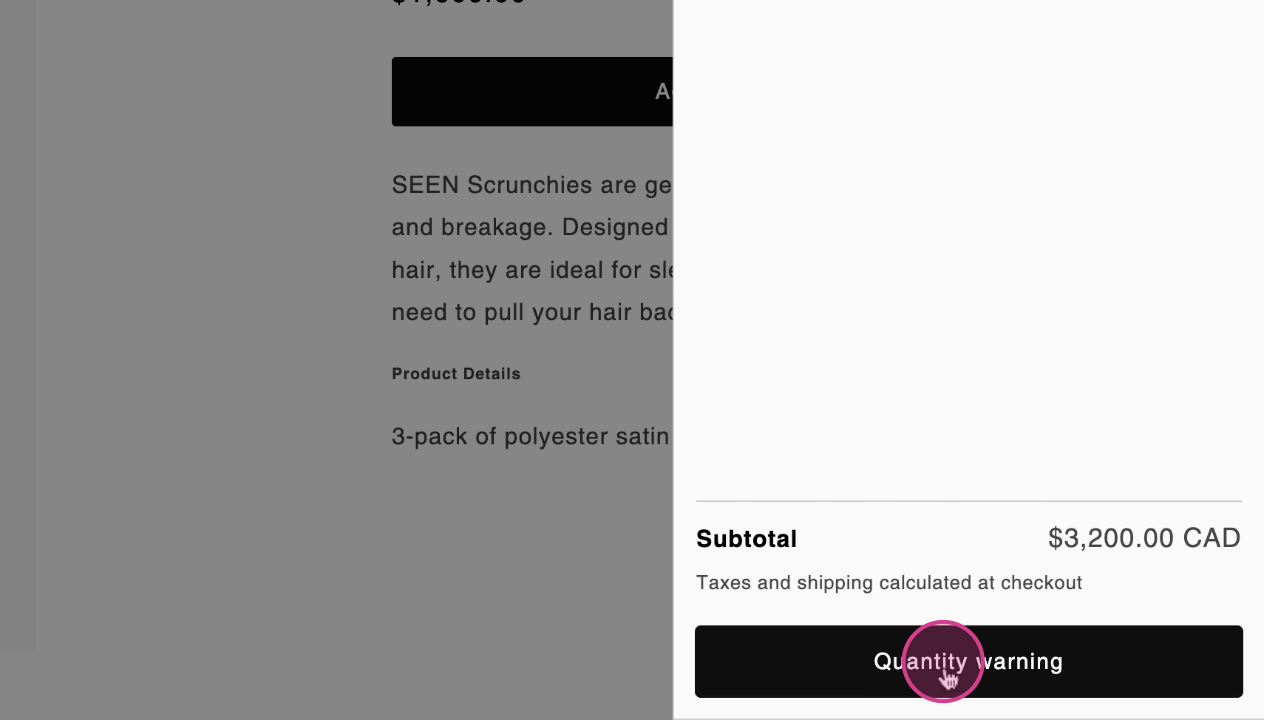
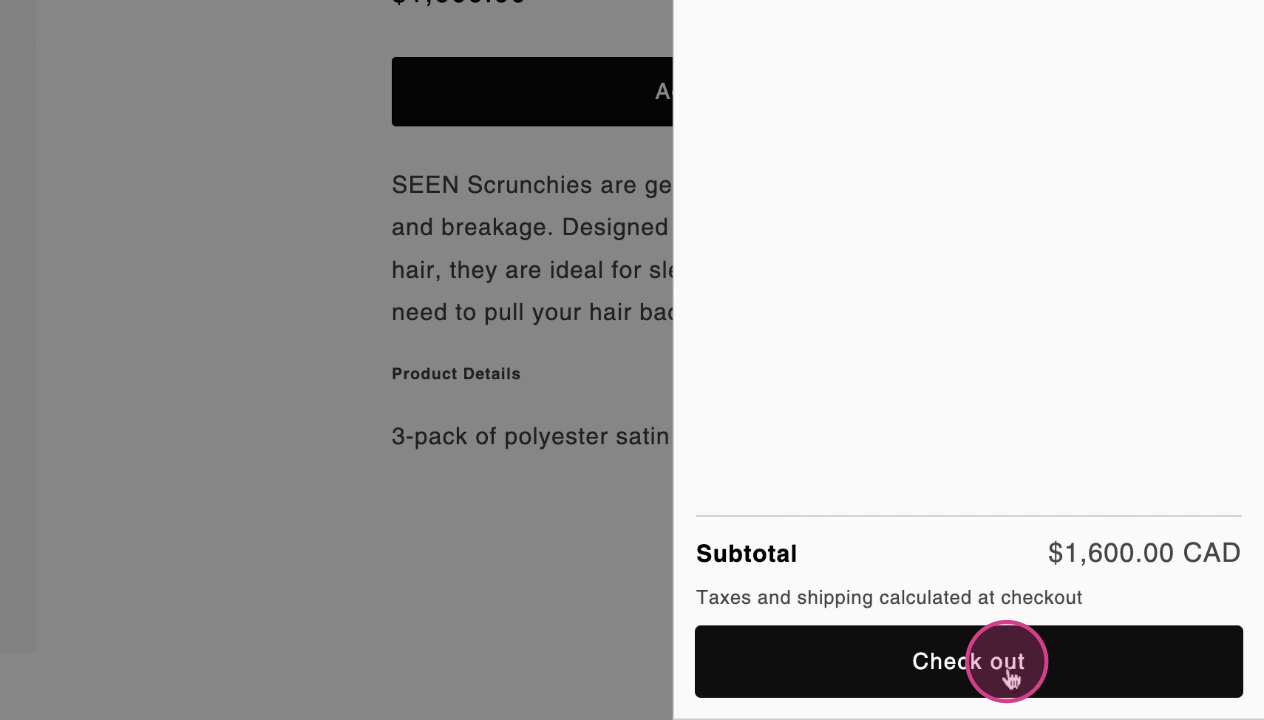
Step 19: Decrease the quantity to one and you should be able to check out.
And that's it! You've successfully created a limited edition product limit in MinCart. If you have any questions or need further assistance, don't hesitate to reach out to support.
Updated on: 02/12/2025
Thank you!